 AnyPane
Remote development
Out of Grok Bot credits? Put its cloud computer to work.
By Aime Tech Media Limited · AnyPane
The chat allowance is exhausted, but the cloud computer is still available. In the AnyPane owner’s demonstrated Grok Bot setup, the VM remained accessible after the bot’s chat allowance ran out.
Rather than leave that authorized environment unused, the owner connected with AnyPane: a VNC browser above an SSH terminal running Herdr and Pi on Mac. The same idea is to reuse the available computer with your own tools and accounts, not to obtain more Grok Bot chats.
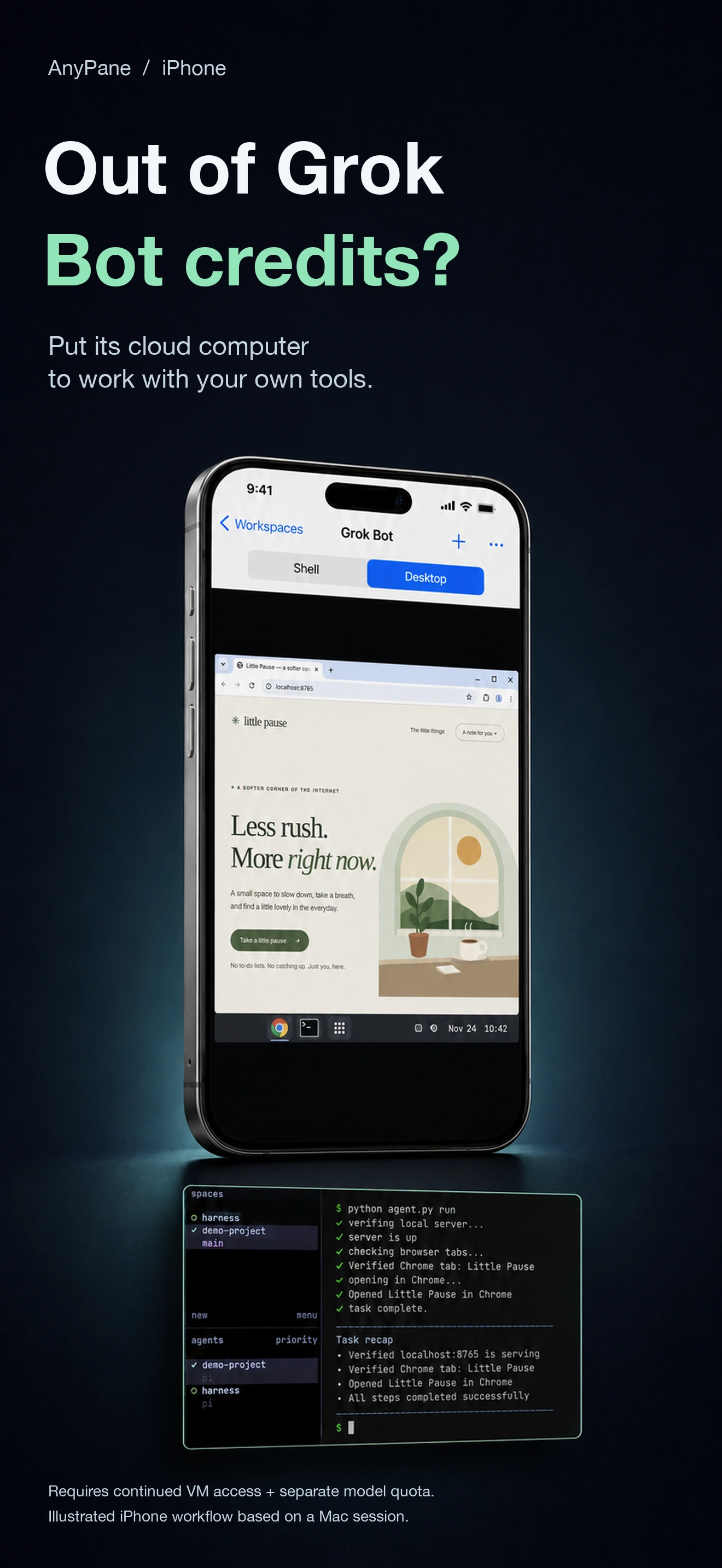
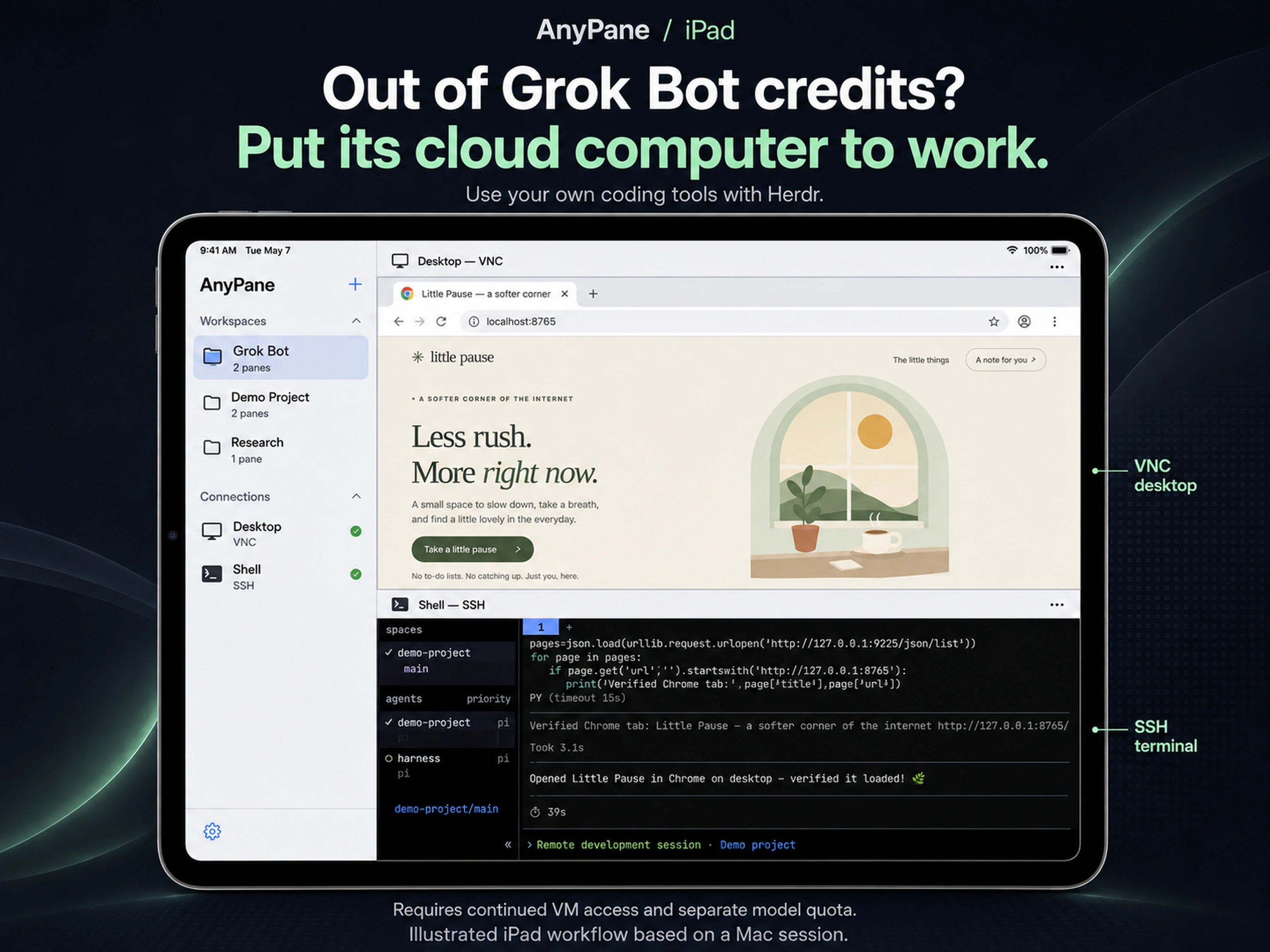
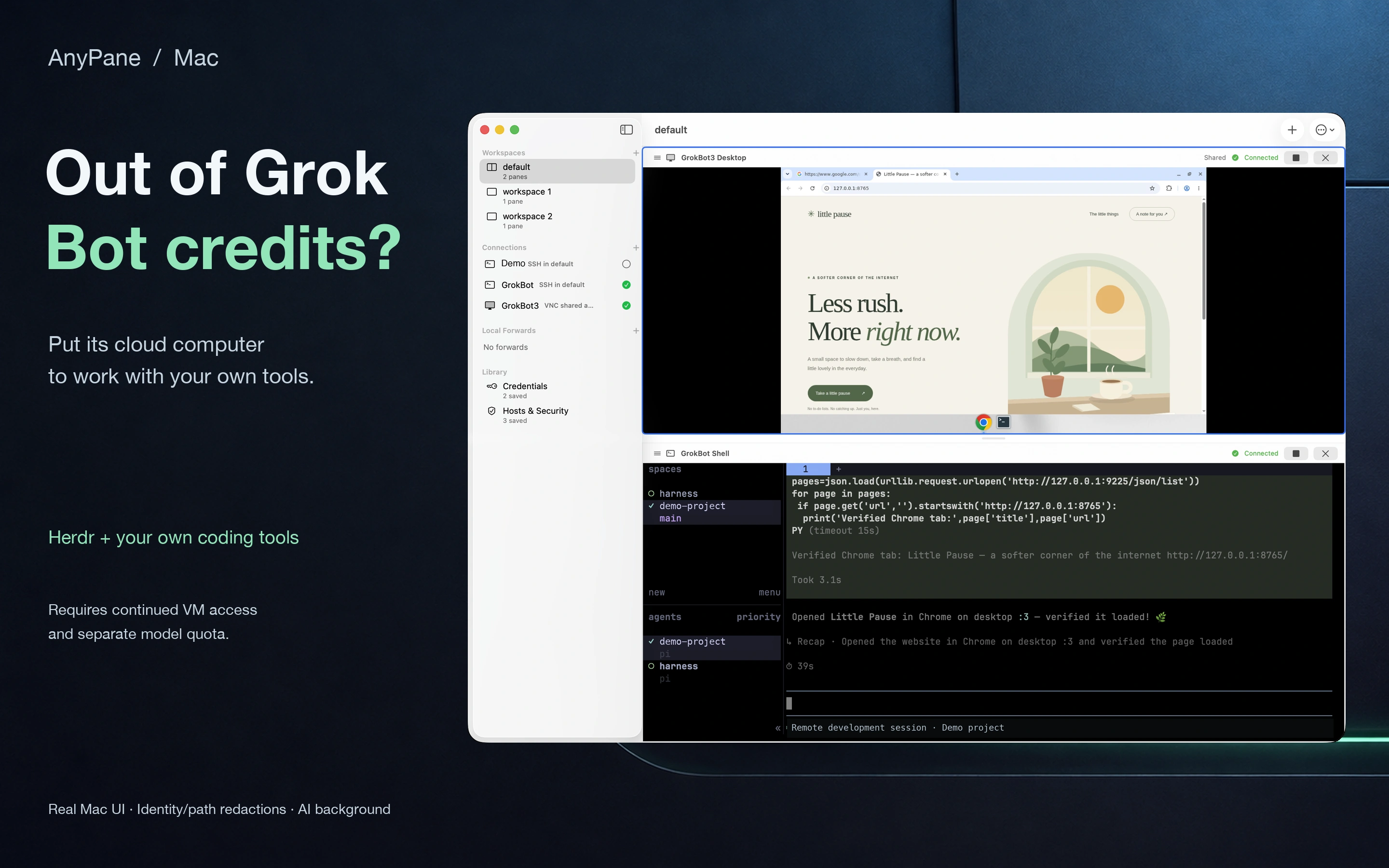
Mac: redacted real capture. iPhone/iPad: authorized AI adaptations, not device captures. View full artwork by selecting a preview.
Owner-reported example, not an independently verified compatibility guide. Continued VM access and permitted use depend on your plan and provider terms; your tools need their own valid model access and quota. This does not bypass the bot allowance or guarantee VM availability.
An agent harness is software for working with an AI agent and its tools, such as Pi, Codex CLI or Claude Code. AnyPane provides the SSH terminal and VNC view; Herdr and the harness run separately on the VM, not on your phone or tablet.
How the pieces fit together
-
AnyPane on your device
One workspace for your terminal and remote desktop. -
Tailscale between device and VM
A private network path, restricted to the devices and ports you authorize. -
SSH into the VM
Use Herdr to organize terminal sessions running Pi, Codex CLI or Claude Code. -
VNC into the bot’s desktop
See the browser, inspect the app you are building, and interact with the desktop.
Herdr and the harness are installed separately on the VM. This workflow uses AnyPane’s existing SSH and VNC connections, not native Herdr or agent-management integration.
1. Make the VM reachable, privately
Start with a VM you are authorized to use and administer. In the setup described here, the owner had a VM and per-bot desktops available. Confirm your own VM’s lifetime, installation permissions and continued availability before relying on it for development.
- Install Tailscale on the VM and on your iPhone, iPad or Mac, and join them to a tailnet you control. Allow only the required users, devices and ports through its access policy and the VM firewall.
- Enable a standard SSH server on the VM and install the public key for a dedicated development user. In AnyPane, use the matching supported OpenSSH Ed25519 private key. Keep the private key off the remote VM.
- Verify the VM’s SSH host fingerprint through a trusted channel before accepting it. Test key login before disabling a working fallback so you do not lock yourself out.
This example uses ordinary SSH key authentication over Tailscale’s network, not the separate Tailscale SSH authentication feature. Do not expose SSH or the VNC ports to the public internet for this workflow.
2. Put the shell and desktop in one workspace
Create an SSH connection in AnyPane using the VM’s Tailscale address, SSH port, username and key. Add it to a workspace, then add a VNC connection for the bot desktop you want to see.
Choose the right bot desktop
In the owner-described setup, bot 1 uses VNC port 5901,
bot 2 uses 5902, and later bots follow the same
sequence. These are examples, not a guaranteed Grok Bot port
contract. Verify the actual port and credentials for your bot.
Prefer AnyPane’s VNC-over-SSH option. Use the VM’s SSH connection for
the tunnel and the VNC address reachable from that VM as the
destination. If the VNC server listens on VM loopback, that
destination is 127.0.0.1 with the bot’s VNC port. A
containerized desktop may use a different address; check the actual
listener.
Keep VNC authentication enabled. If instead connecting directly to a tailnet VNC address, restrict that listener to authorized tailnet access. Tailscale encrypts its network path, but direct VNC is not encrypted at the application layer and AnyPane does not support VNC TLS.
On iPad and Mac, keep the terminal and desktop visible together. On iPhone, switch between them using the pane tabs.
3. Work in your own harness
Install Herdr and your preferred harness using their current official instructions. Sign in or configure model access for that harness using your own authorized account. Store credentials securely on the remote system and avoid pasting them into logs or shared terminal output.
- Open your project directory through SSH and start or enter the appropriate Herdr session.
- Run Pi, Codex CLI or Claude Code there. Review proposed changes, approve actions and run your project’s checks from the terminal.
- Switch to the VNC pane to inspect the running application or browser. When your harness supports browser tools and is configured for this environment, you can also watch and intervene in that work.
- Use the result you see in the desktop to guide your next terminal step. The code and tools remain on the remote VM.
AnyPane does not supply model access or browser automation. Those capabilities, permissions and costs belong to the harness and services you choose. Exhausting one service’s allowance does not grant extra access to that service through another client.
4. Leave the view. Return to the work.
Before depending on a long-running task, verify that your Herdr session and its processes survive an SSH disconnect in your VM configuration. Reconnect to the same VM and re-enter that session to resume viewing it.
AnyPane cannot keep the VM alive or guarantee remote process survival. iPhone and iPad may interrupt connections in the background; reconnect manually when needed. Save and back up your work outside the VM before its storage or access can expire.
Connection guides
General setup for the connection types in this example: VNC over SSH, one SSH jump host, and local port forwarding.
What you gain
A way to use an accessible VM as your own development environment: choose the harness in the terminal, see the desktop beside it, and control both from your iPhone, iPad or Mac.
View on App StoreFor iPhone, iPad and Mac.
Check connection requirements →
Limited-time offer: Free for a limited time.
One-time purchase from December 1, 2026:
US$14.99 (U.S.) / CNY 98 (China mainland).
Offer details →
Currently free in the U.S. and China mainland. Actual pricing and availability follow your local App Store.
This example does not imply affiliation with or endorsement by Grok Bot, Tailscale, Herdr or the harness providers. Availability and compatibility require verification in your own authorized environment.